
Get started
Your first program
Make a project, blink the LED on an ESP32 board, and add a button.
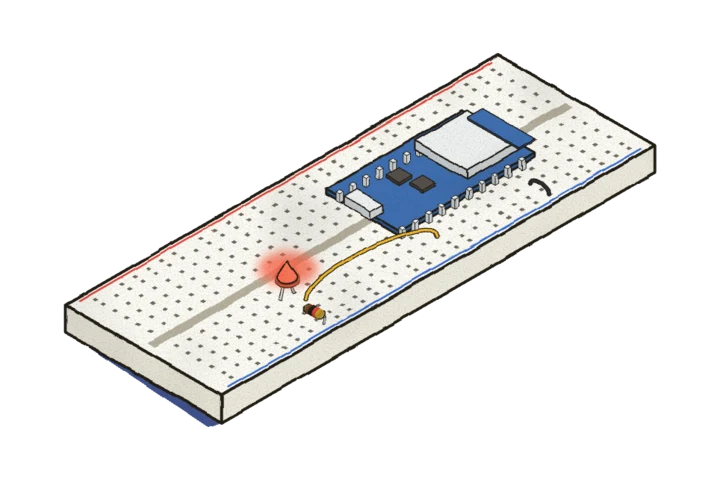
You need an ESP32 development board (an ESP32-DevKitC or anything like it) and a USB cable that carries data. Most of these boards have an LED on GPIO 2, which is what we’ll blink. You can follow along in Volt IDE or with the volt command-line tool; pick one here and the rest of the docs will remember it.
Make a project
The first time you open Volt IDE, it walks you through a new project:
- Choose your chip. Pick ESP32.
- Pick a starting point. Blink is a program that flashes the LED; there are also IoT Sensor, Door Lock and Blank.
- Name your project, for example
blink. It’s created in theVoltfolder in your home folder:~/Volt/blinkon macOS and Linux,C:\Users\<you>\Volt\blinkon Windows. You can choose a different folder in Settings.
Press Create Project, then Open project. Later projects start the same way, from New Project in the toolbar.
volt new makes a project folder:
$ volt new blink
Created blink for esp32. Next:
  cd blink
  volt run
--chip picks another chip (esp8266, rp2040), and --template another starting program (iot-sensor, empty).
A project is a folder with two files: main.volt, the program, and volt.toml, which records the chip you chose. You only ever edit main.volt.
The program
Your project starts with this:
hardware {
    pin led: Output = 2
}

every 500ms {
    led.toggle()
}
The hardware block says what’s wired where: an LED, as an output, on GPIO 2. The every block runs twice a second and flips the LED.
Check it
The IDE checks as you type: a problem is underlined the moment you make it, with the explanation and, often, a fix button underneath. Compile runs the full build without uploading.
$ volt check
✓ Check passed in 14ms
volt check runs every check the compiler has, in milliseconds, without building anything.
Try a mistake: change the 2 to 34. GPIO 34 is input-only, so the compiler stops you and lists the pins that can drive an LED. You can try it here too: press Check on the program above and make the same change.
Run it
Plug the board in.
Press Upload. The IDE compiles the firmware, uploads it to the board, and opens the serial monitor.
The first time you build for a chip, the IDE offers to download that chip’s build tools. It’s a one-time download.
$ volt runvolt run builds the firmware, flashes it, and opens the serial monitor. Press Ctrl+C to leave the monitor; the board keeps running. If more than one board is plugged in, volt ports lists them and volt run -p <port> picks one.
The first build for a chip needs its build tools: volt toolchain install esp32. It’s a one-time download.
The LED starts blinking.
Say something
Programs talk back over the serial monitor with log. Give the program a counter:
hardware {
    pin led: Output = 2
}

var count: int = 0

every 500ms {
    led.toggle()
    count += 1
    log("blink", "toggled {count} times")
}
Upload it again, and the monitor shows:
00:00:00.500 [INFO ] blink: toggled 1 times
00:00:01.000 [INFO ] blink: toggled 2 times
00:00:01.500 [INFO ] blink: toggled 3 times
Each line starts with the time since the board started, then the tag you gave log.
Add a button
Wire a push button between GPIO 23 and ground, and give it to the program. PullUpInput turns on the pin’s internal pull-up, so the pin reads high until the button connects it to ground:
hardware {
    pin led: Output = 2
    pin button: PullUpInput = 23
}

every 20ms {
    if button.is_pressed() {
        led.on()
    } else {
        led.off()
    }
}
Try it. Press Check, then move the button to GPIO 6. Those pins belong to the flash chip, and the compiler says so.
Next
- Program structure: the parts of a program and the order they run in.
- Hardware: pins, devices and buses.
- Timing and tasks: running things at different rates.